


The following content is adapted from the Dada Mail Manual. The Dada Mail Manual is available through the purchase of Pro Dada.
Support Dada Mail by purchasing Pro Dada!
Professional installation is available.
Dada Mail Manual
- A Gentle Introduction To Dada Mail
A Gentle Introduction To Dada Mail
In the 14 years it has been in development, Dada Mail has grown from a very simple CGI script to a very large and sophisticated web-based application.
What is Dada Mail?
In essence, Dada Mail does two very important things:
-
Dada Mail allows a visitor to your site to subscribe to a mailing list.
-
Dada Mail allows you to send a mass mailing to your mailing list.
Without these two things, Dada Mail wouldn't be Dada Mail!
A Tour of Dada Mail
Dada Mail's web-based environment can be divided into two different sections.
The first section are User Screens. Everything that's publically accessible in Dada Mail is basically a User Screen.
The other section of Dada Mail is the List Control Panel. This is where you administrate your Dada Mail mailing lists. This includes: adding/removing subscribers, changing the preferences of your mailing list and sending out mass mailings.
Default Screen
The Default Screen is what you see when you first encounter Dada Mail. If you haven't set up a mailing list yet, you'll first see a, Congratulations message, with a form to enter the Dada Mail Root Password, to create your first Dada Mail mailing list.
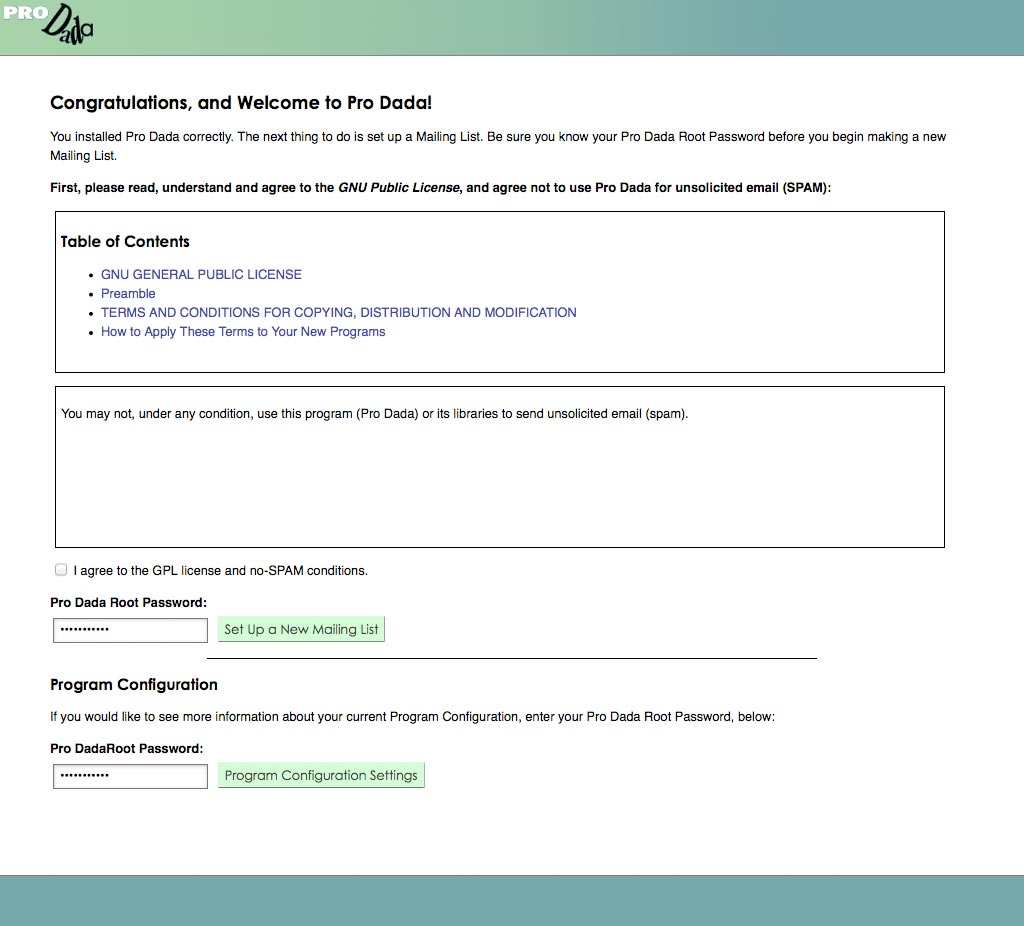
The Default Dada Mail Screen, with the, "Congratulations"
Message
If you've already created a mailing list, the Default Screen will have a subscription form for all the current mailing lists, as well as a listing of each mailing list, with their descriptions.
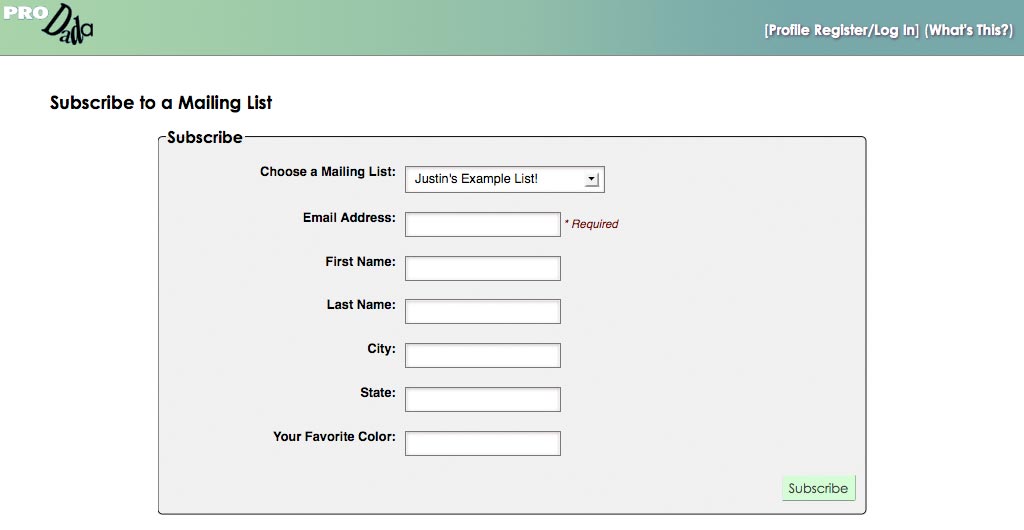
The Default Dada Mail Screen,
Each listing will also have a link to the List Screen.
The List Screen
The List Screen is akin to the home page for your Mailing List. It'll have the description of your Mailing List, its Privacy Policy and more information.
This screen should also have a listing of any archived messages available to view, as well as a link to view all the archived messages that are available.
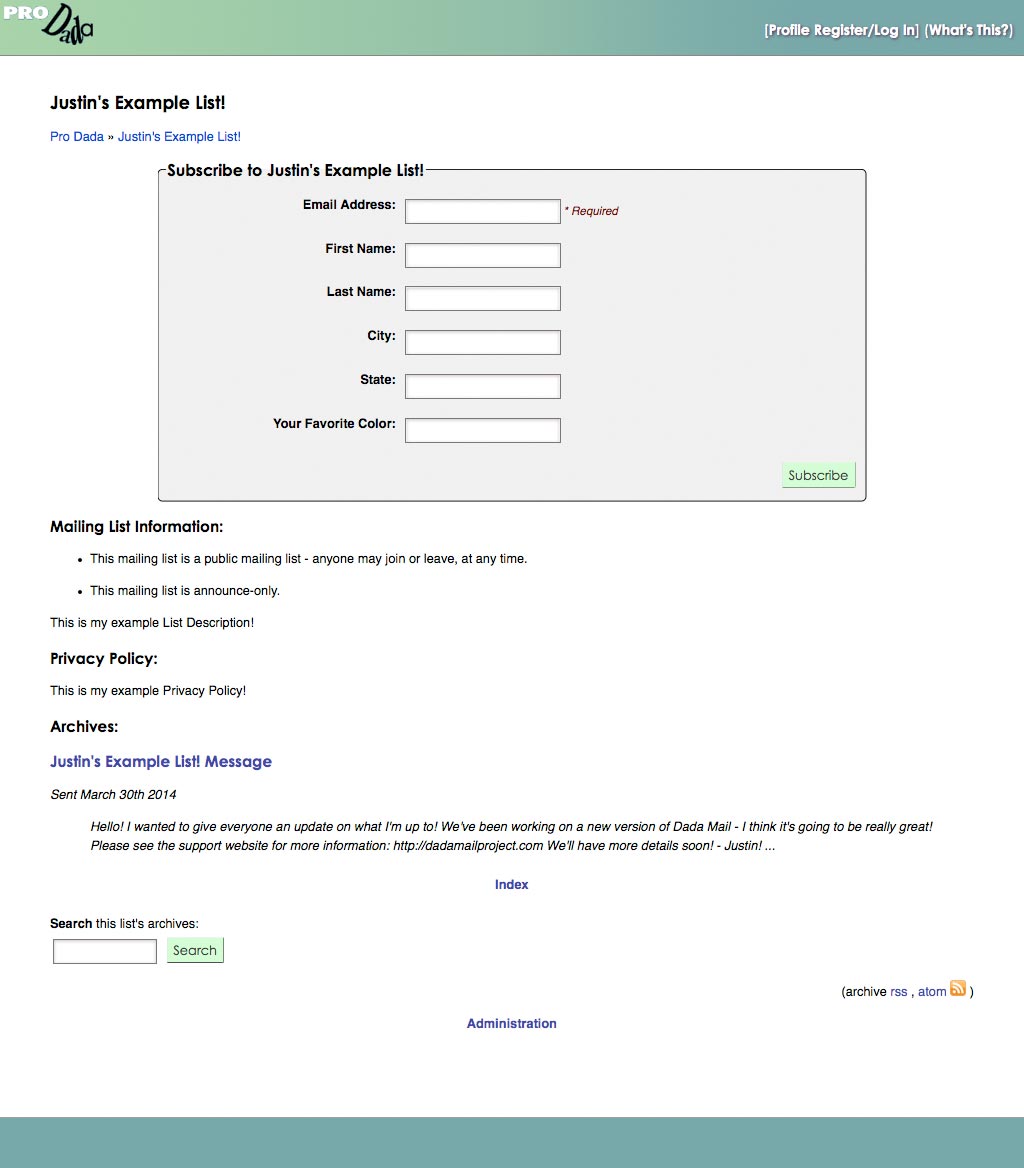
The List Screen
The Mailing List Archives Screen
The Mailing List Archives Screen shows all the archived messages available.
Messages are archived from past mailings and are viewable from within Dada Mail.
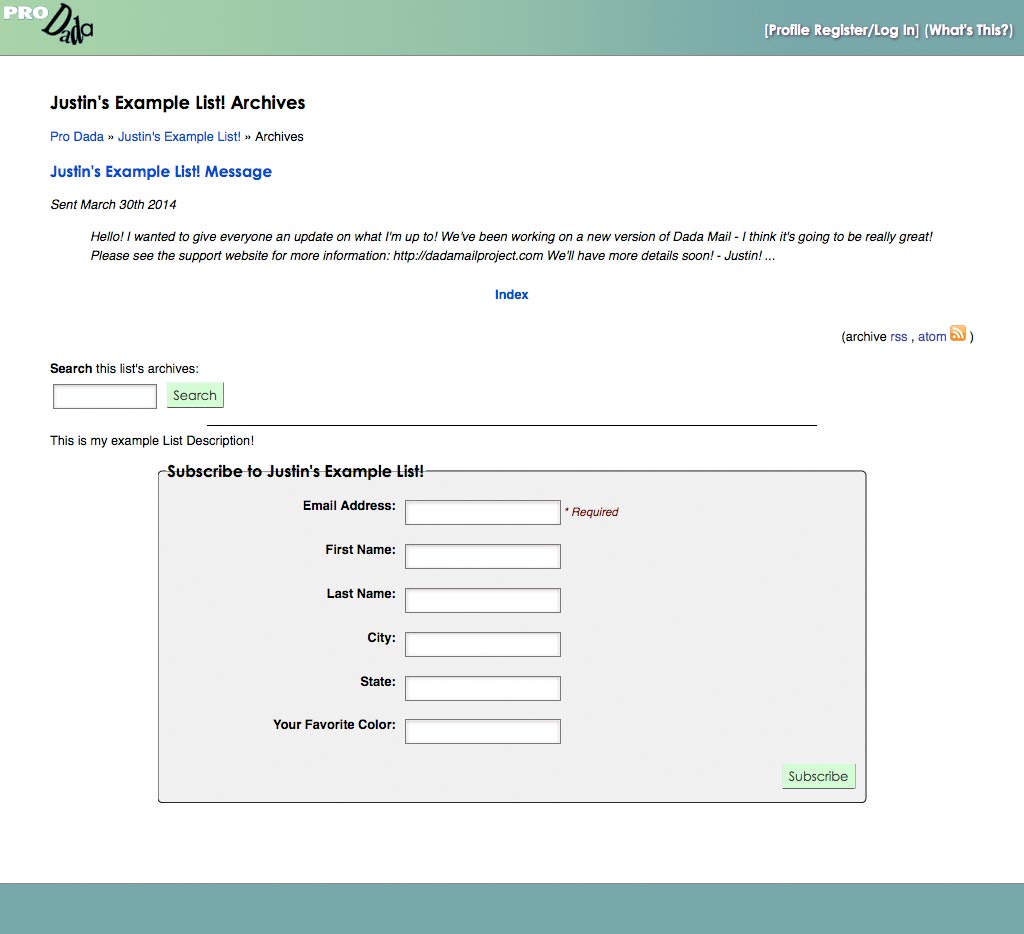
The List Archives Screen
Individual archived messages will have their own screen, with a search form, to search through the mailing list's archived messages and a Dada Mail Subscription Form, so your users can send each other copies of the archived messages.
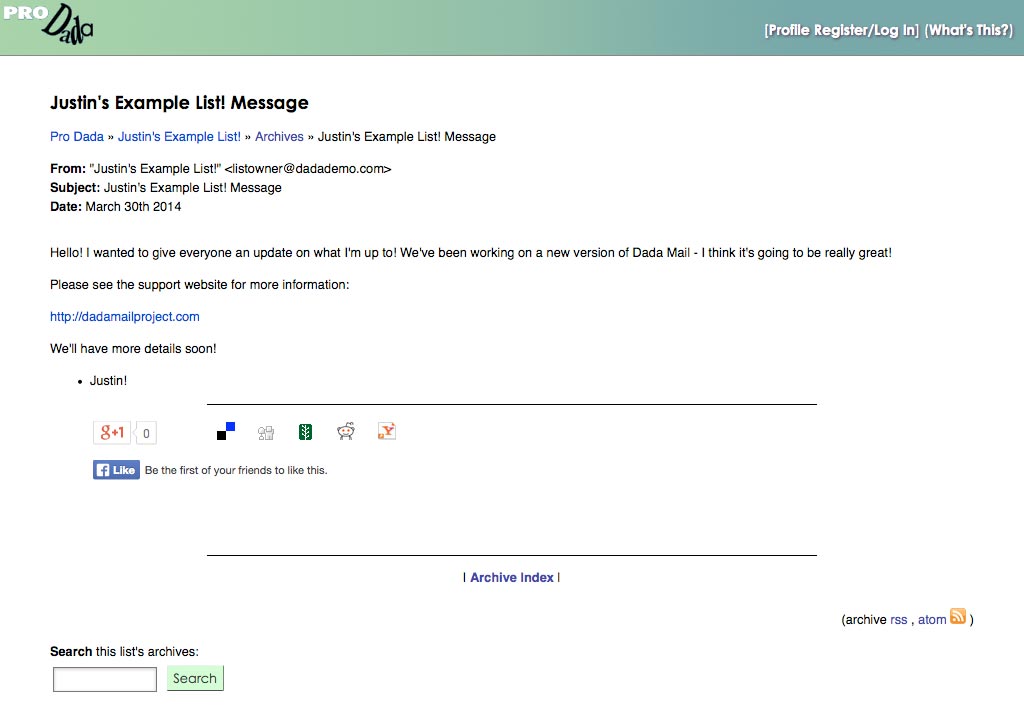
An Individual Archive Screen
Dada Mail Profiles
Dada Mail Profiles gives a user one place to manage their own Dada Mail subscriptions.
Subscribers with Profiles will be able to View their subscriptions, unsubscribe from individual Mailing Lists and update the email address used for their subscriptions.
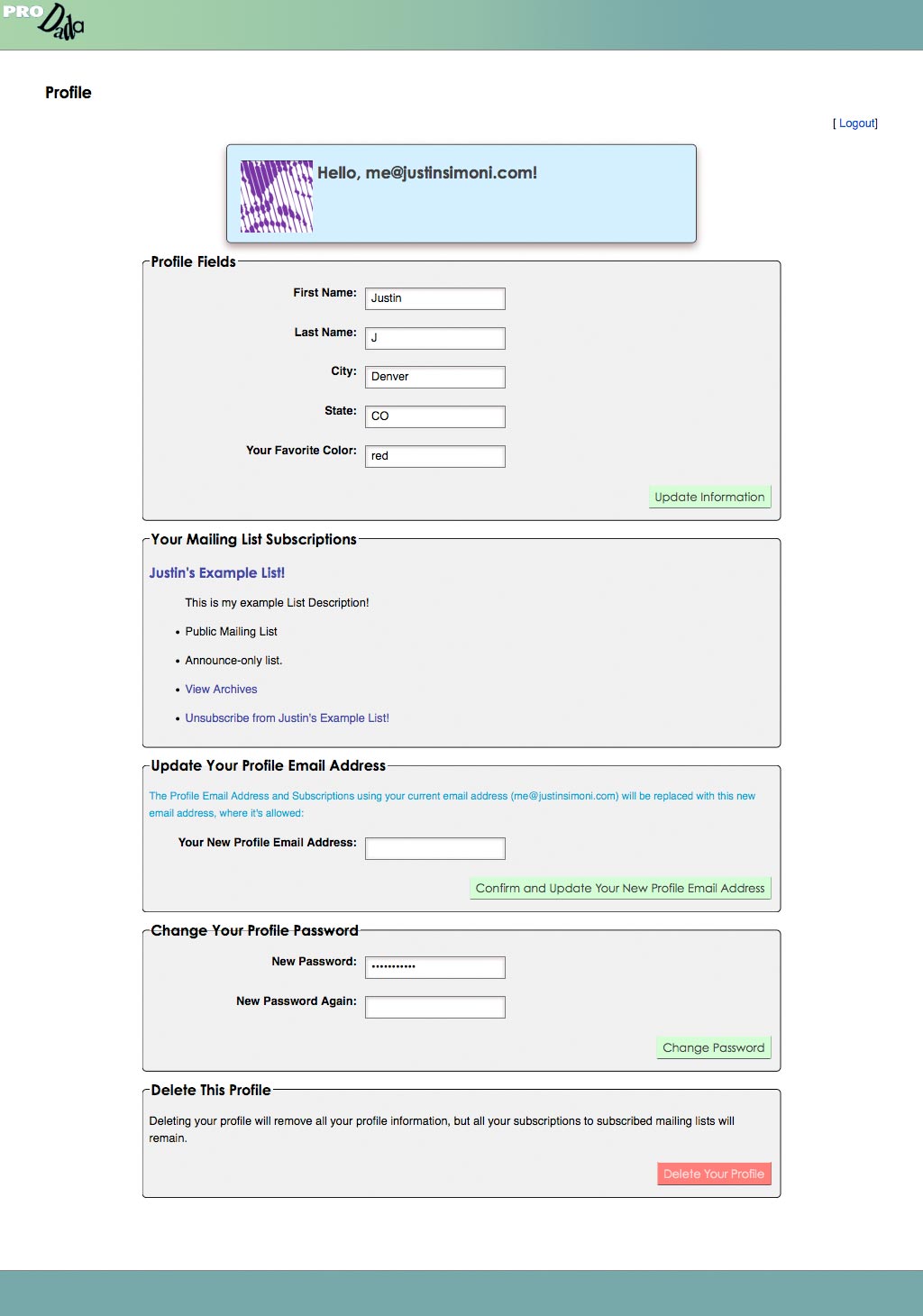
An Individual User's Profile
See Also
The Dada Mail Support Docs on Profiles.
Administration
On the Default Screen, there's a link labeled, Administration on the very bottom. If you follow this link, you'll go to the Administration Screen, which will allow you to log into lists you've already have created and allow you to create a new mailing list.
This is the gateway between the User Screens and the List Control Panel.
When you log into a mailing list that's already created, you do have the option of logging in using the List Password, which is set during mailing list creation, or the Dada Mail Root Password, which is set during installation of Dada Mail itself.
The Dada Mail Root Password will allow you to log into any mailing list you'd like and may give you special, "Super User" abilities.
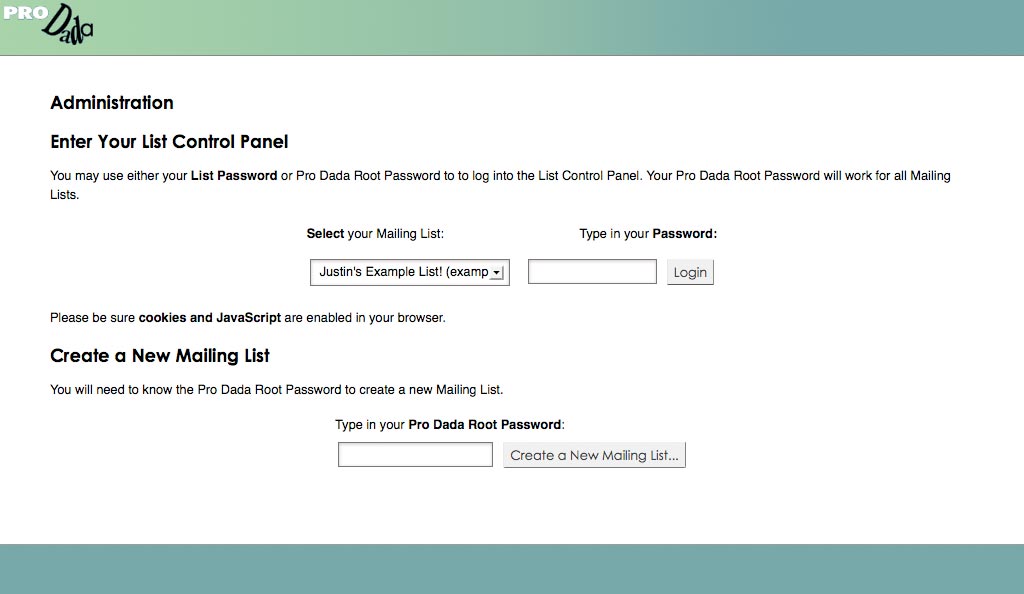
The Administration Screen
The List Control Panel
The List Control Panel has a great number of screens that allow you to interact with your mailing list. Not only can you send out a mass mailing, you can also set preferences for your mailing list, as well as add/remove subscribers.
Each separate mailing list will have different preferences associated with it, each mailing list is fairly separate from each other Mailing List.
Admin Menu
The various screens can be accessed from the list control panel menu.
We'll routinely give directions on how to access certain administration screens, by giving the Header and Subheading on where they're located. For example, Memnbership - Invite/Subscribe/Add would be located at:
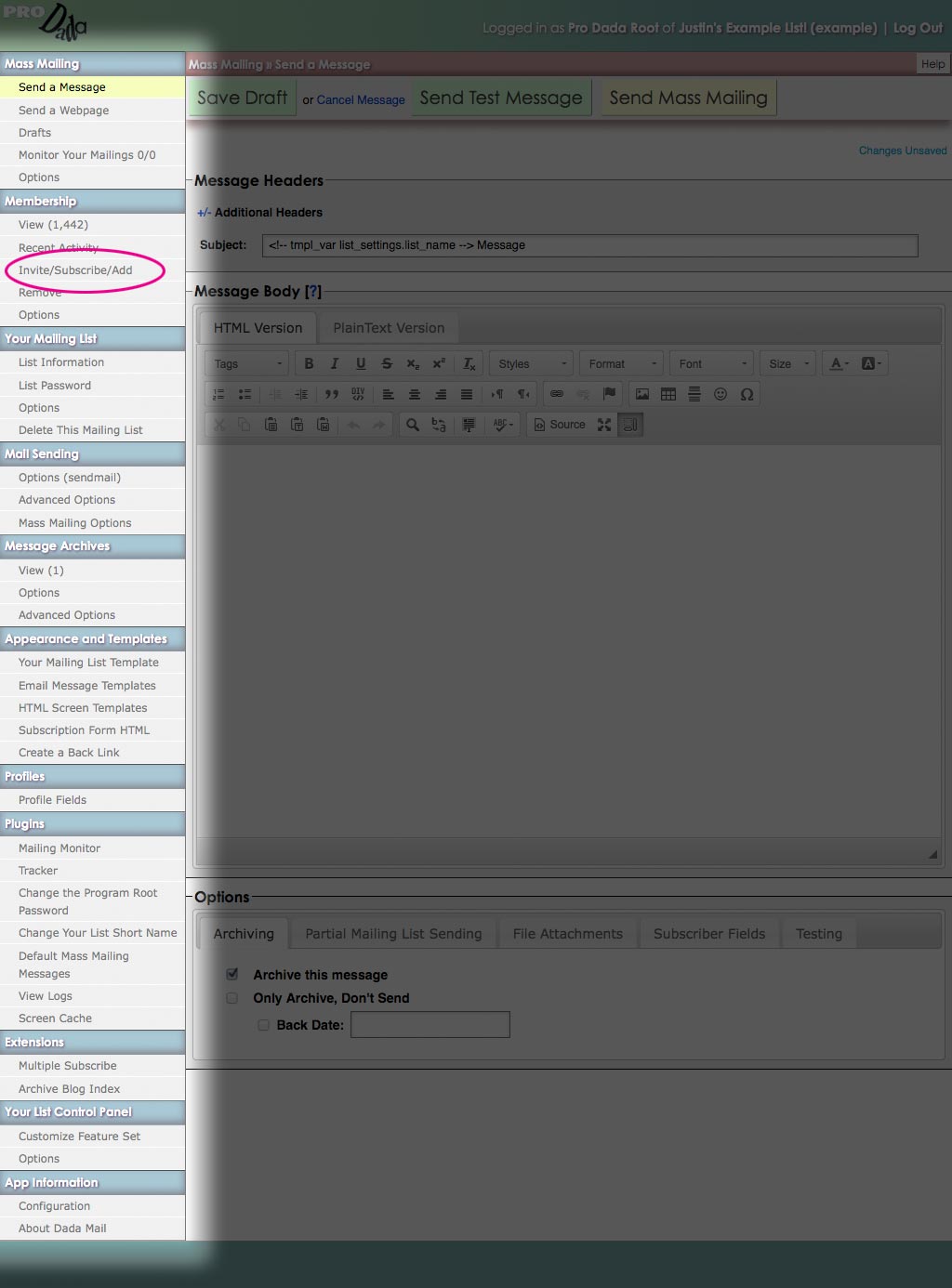
Finding the, "Membership -> Invite/Subscribe/Add"
Screen
Sending a Mass Mailing
When you log into the List Control Panel, the first you'll see is the, Send a Message screen. This screen will allow you to send out a mass mailing to everyone that's subscribed on your mailing list.
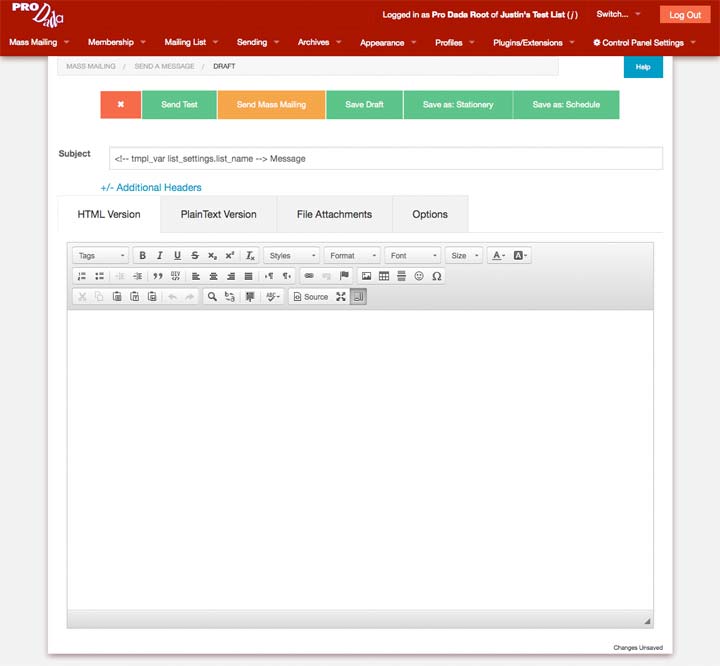
The Send a Message Screen
Dada Mail can handle quite a few different message formats (PlainText, HTML, Both), attachments, custom headers, mailing list message templates and a whole lot more. You don't have to know about any of these to start though, just fill out the Subject of your message, write out the message itself and press, Send Mass Mailing
See Also
(Try this!) The Chapter on the Send a Message screen.
Adding Subscribers in the List Control Panel
If you're importing a mailing list from another system, you can add subscribers en-mass in the List Control Panel's, Memnbership - Invite/Subscribe/Add screen.
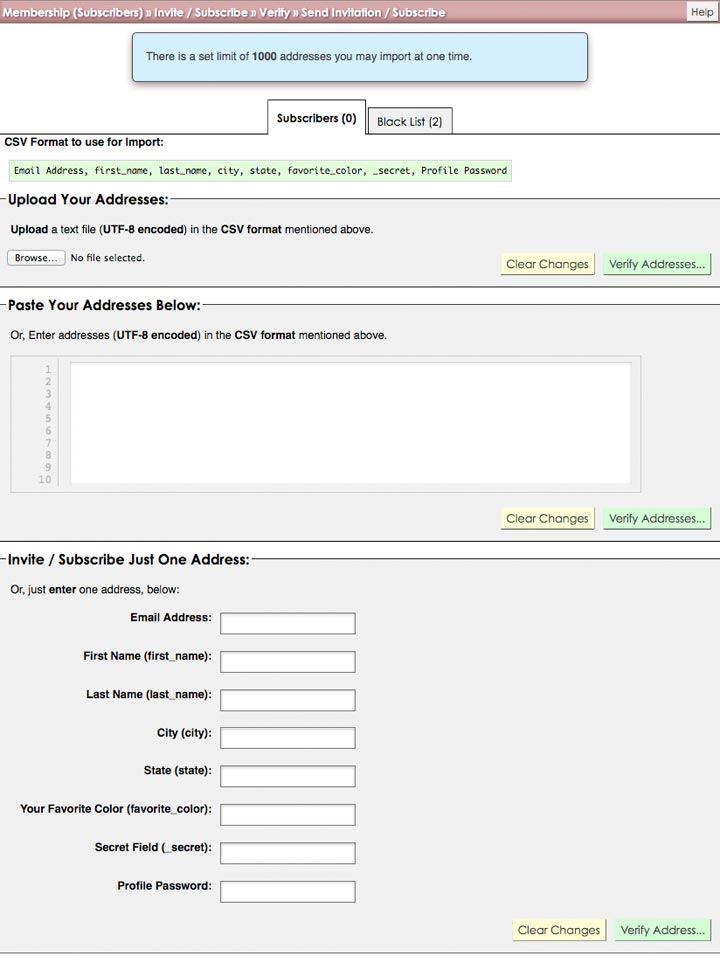
The Membership - Invite/Subscribe/Add Screen
See Also
The Chapter on the Membership - Add screen.
Profile Fields
Dada Mail Subscribers can also have Profile Fields associated with them, allowing you to store things like the name, of a subscriber, or anything else you'd like to capture. Profile Fields can also be set as being required.
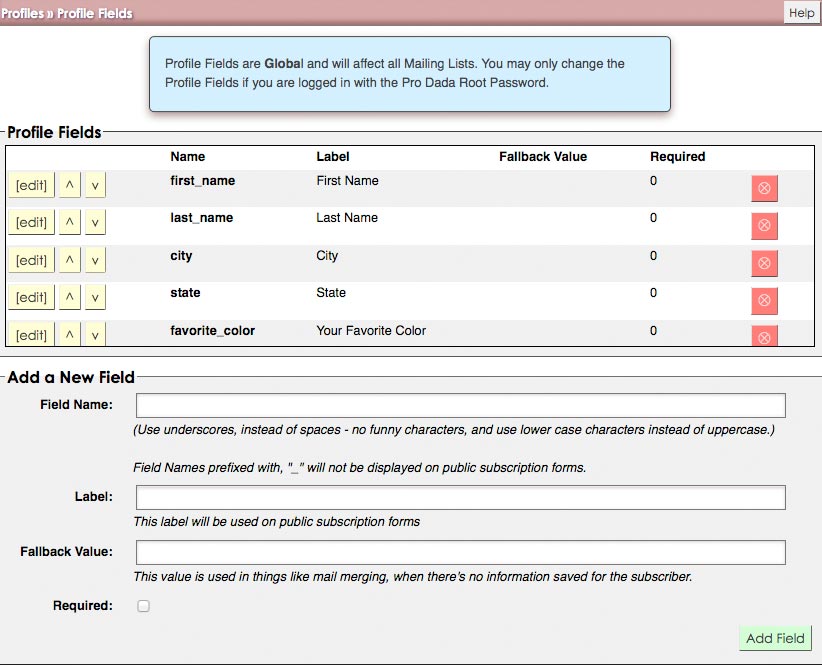
Profile Fields
Dada Mail Subscription Forms
The Dada Mail Subscription Form is the HTML code that you'll need to put a subscription form on any page of your web site. It can be copied from the, Appearance and Templates - Subscription Form HTML screen.
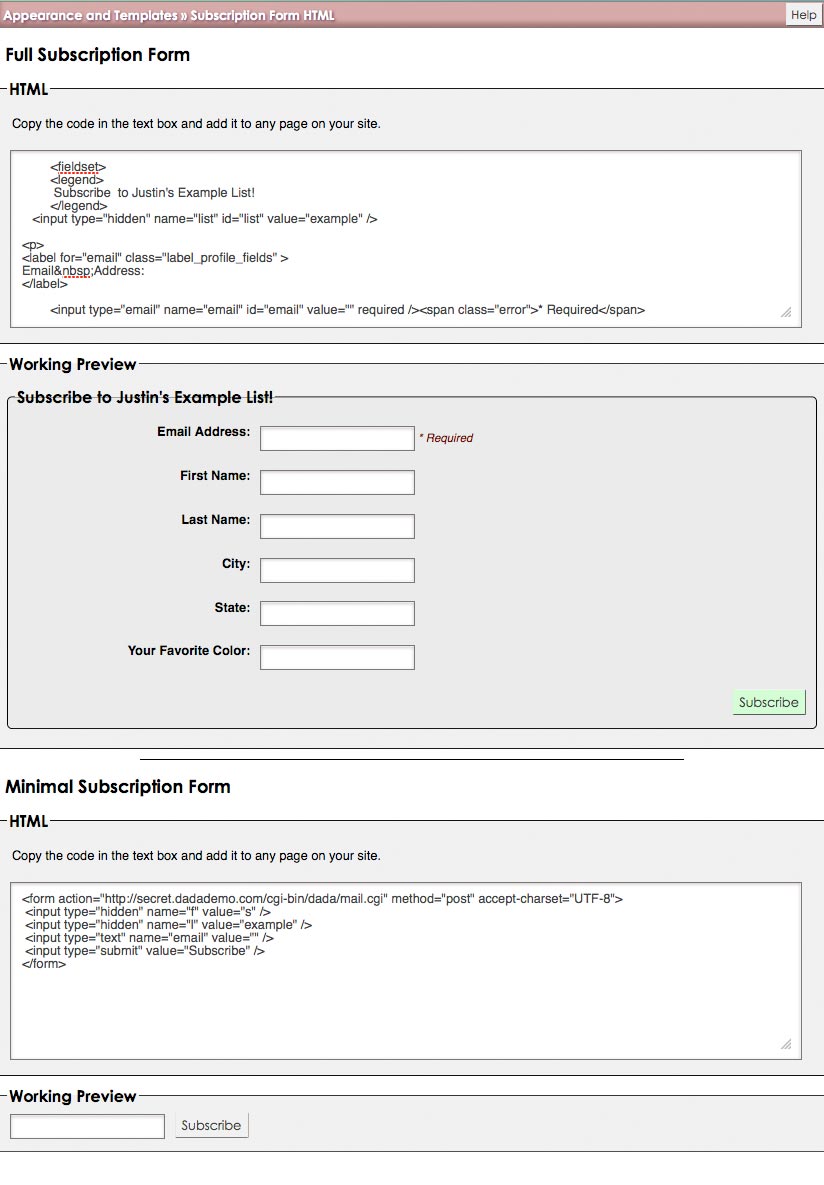
The Dada Mail Subscription Form HTML
See Also
The Chapter on the Manage Appearance -> Subscription Form HTML screen.
Plugins
Additional functionality of Dada Mail is done using Dada Mail's simple plugin system. All plugins available for Dada Mail are shipped with the distribution, and can be installed with the included web-based installer. These plugins are tightly integrated with the core of Dada Mail, and also work together to provide even more features.
Tracker
The Tracker plugin creates analytic reports based on data collected about your mass mailings: things like messages opens, clickthroughs, bounces, forwards, archive views, etc.
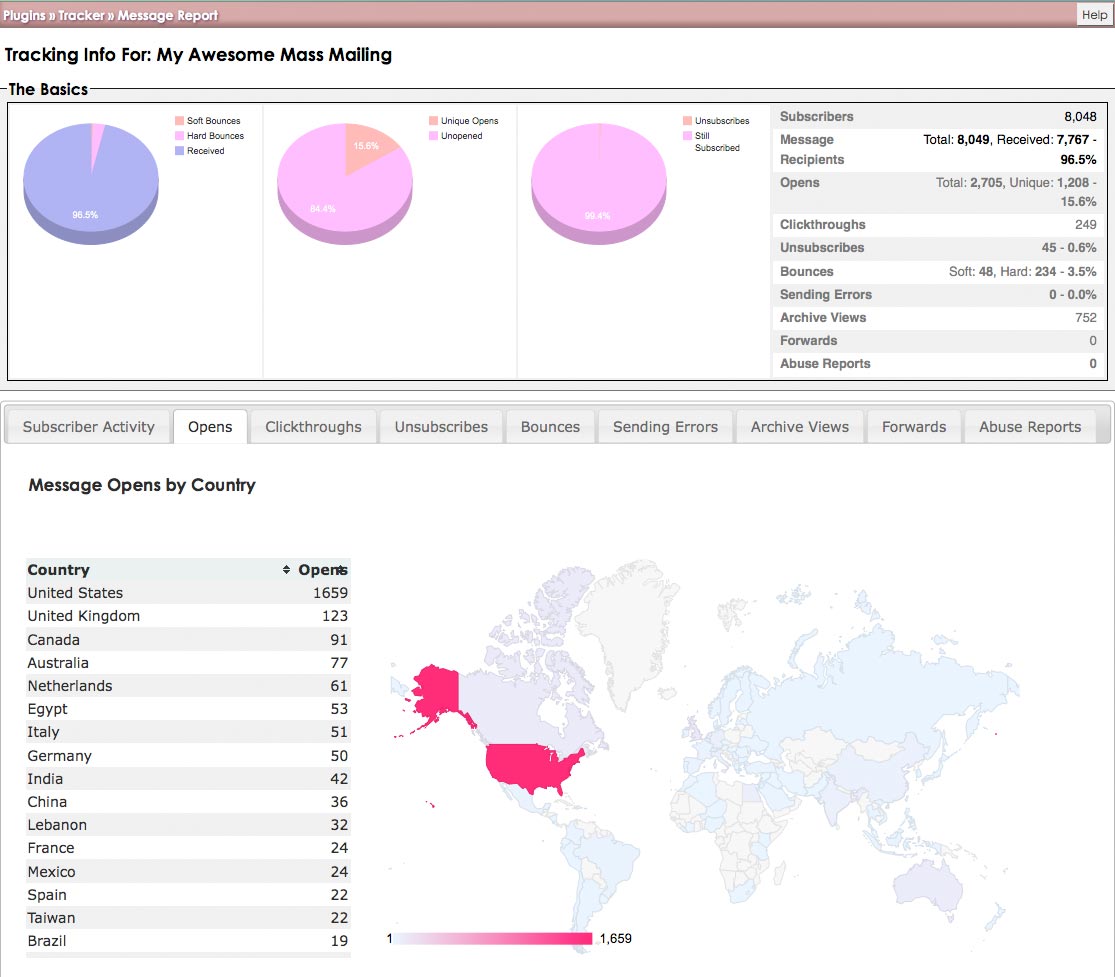
Tracker Plugin
See Also
Using Tracker Chapter.
Bounce Handler
The Bounce Handler plugin allows you to easily and efficiently deal with the inevitable bounce back of messages sent to mailing list subscribers.
See Also
Using Bounce Handler Chapter.
Bridge
Bridge allows you to both send Announce Only messages from your mail reader, as well as set up a Discussion Lists, where all members of your mailing list can join in and start talking to each other via email.
See Also
Using Bridge Chapter.